
4. Members & Roles
4.1 Adding Members
Adding members is an admin-only action. Invite people by email or phone number — they don't need a 2play account first. The next time they log in with that same email or phone, they can accept the invite and are added with the role you chose.
Members can be added to your entire organization (all kiosks) or scoped to a single kiosk.
To invite a teammate:
- Go to the Members section on your organization's page in PlayPortal.
- Choose Invite by email or Invite by phone and enter their contact.
- Assign the role you want them to have (see §4.2).
- Optionally, add an expiration date for temp and contract workers.
Email invites also send an invitation email. The invite stays pending (and you can cancel it) until they log in.
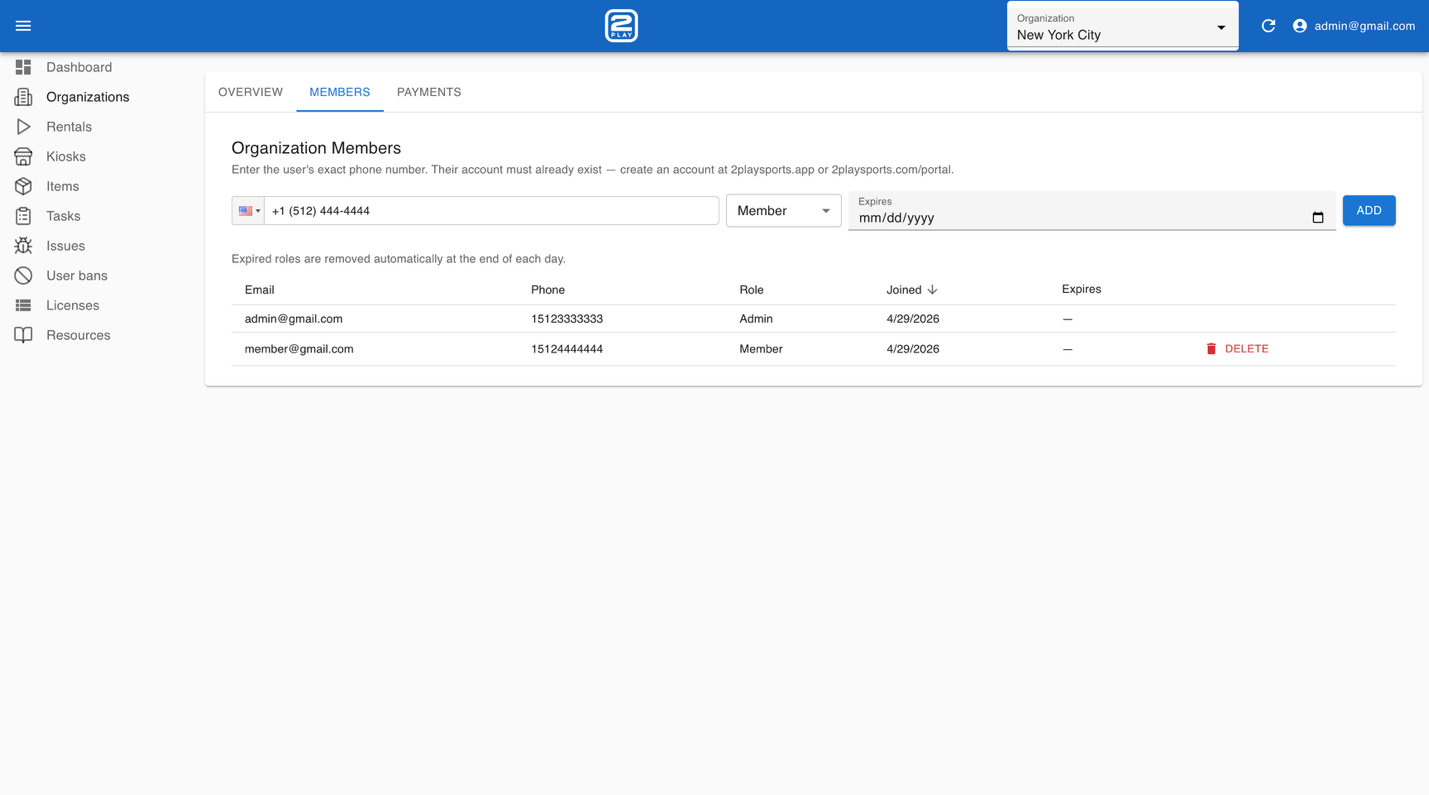
Inviting a member by email or phone
4.2 Roles
There are three roles a partner organization will use:
| Role | What they can do | Who needs this |
|---|---|---|
| Basic |
| Trusted community members / clubs |
| Member |
| Field staff and ops |
| Admin |
| Org leadership and finance |
A role can apply to your whole organization or to specific kiosks. An org-wide role covers all of your kiosks.
4.3 Banning Users
You can ban users from your organization for repeated misbehavior. Anyone with an unpaid balance or delinquent rental is automatically blocked from renting at your kiosks.
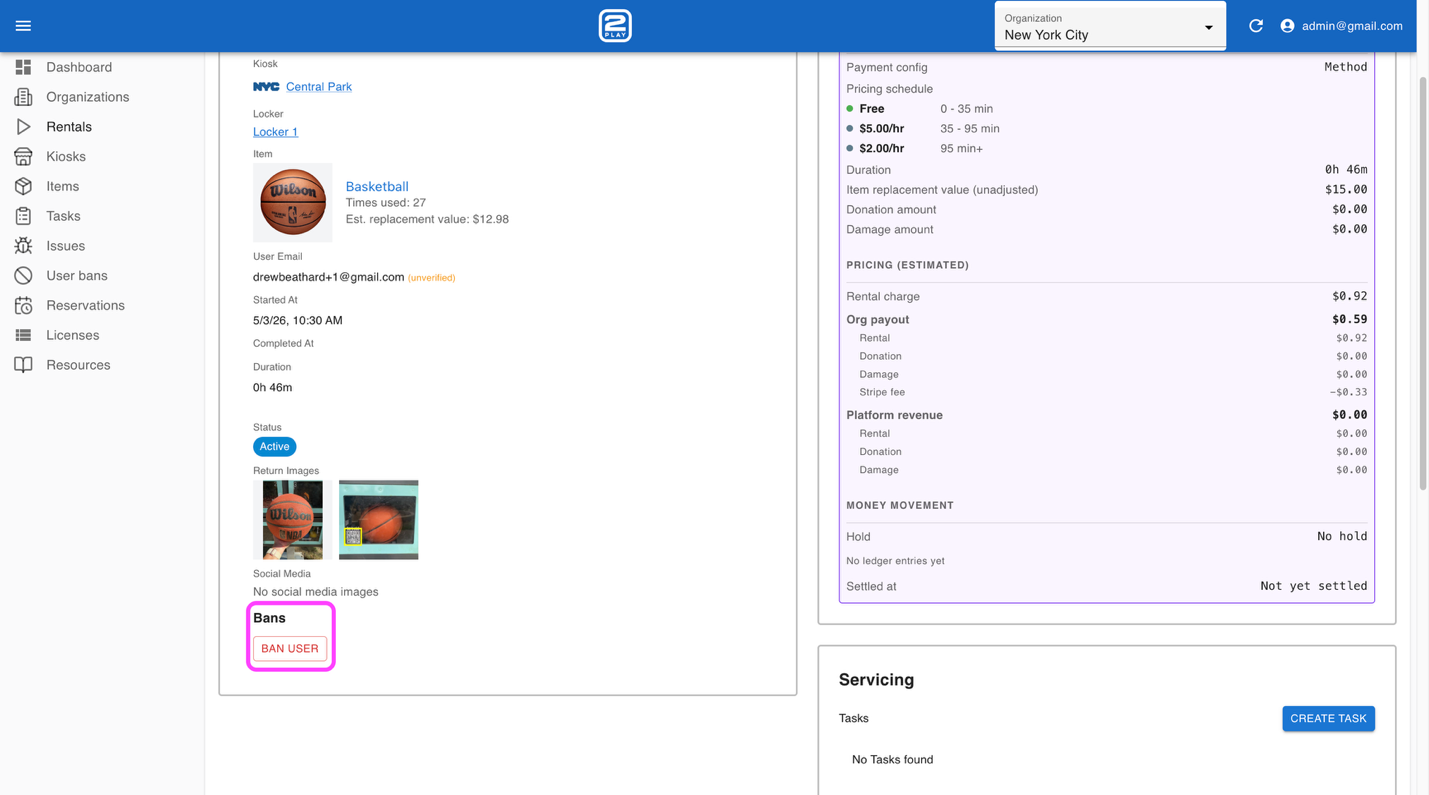
Ban user action on the rentals show page